
How do I add and manage users in SpectrumEnterprise.net?
An administrator can add new users and manage existing users on their account in SpectrumEnterprise.net. Administrators can add users by navigating to the Organization management page and selecting User management. This page can be found by clicking the arrow next to your name in the upper left-hand corner of the screen after you log in (see the image below). Super administrators can also reassign their super admin permission level to another user.
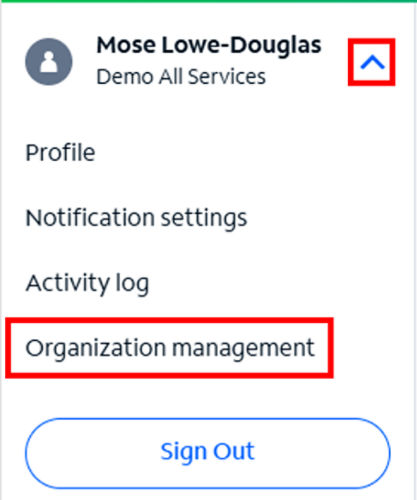
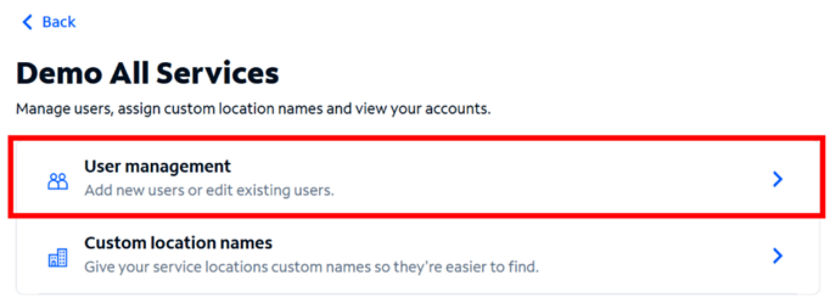
To check your permission level in SpectrumEnterprise.net, select Profile. Your permission level will appear at the top. If you are not an administrator, you can see who on your organization is the “Super admin” under the Organization section in your profile. This user will be able to update your permissions and give you administrative capabilities.
To add a single user:
- Select User Management from the Organization management menu.
- Click Add user at the top of the screen.
- On the Add user screen, populate the user information.
- Select the appropriate user permission level and click the Continue button.
- Toggle individual account numbers this user should have access to, or click Access all accounts
- Click Continue
- Select preset billing or technical permissions or select custom permissions for this user.
- Click Continue
- Review this user’s profile to ensure they have the correct access and permissions
- Click Send invite
Once the user profile is created, an activation email is sent to the user to complete registration. The user must activate their account within 72 hours or the activation link in the email will expire.
To update a single user:
- Select User Management from the Organization management menu
- Click on the User you would like to manage
- Click Edit contact info to update the user’s name or phone number
- Click Edit accounts to update which account numbers and service locations this user can access
- Click Edit permissions to update this user’s permission level and access to features
- Click Edit access to update access to managed services
- Click Save if any edits were made
To transfer super admin permissions:
NOTE – only users with the “Super admin” permission can transfer this permission level.
- Select Profile from the menu
- Click Assign new super admin from the “Permissions” section
- Select the user you would like to transfer your super admin permission to
- Click Continue
- Click Assign new super admin
NOTE – you will lose the super admin capabilities, and you will become an admin if you accept. You will still be able to add and manage users.
OR
- Select User Management from the Organization management menu
- Click on the User you would like to transfer your super admin permission to
- Click Assign new super admin
NOTE – you will lose the super admin capabilities, and you will become an admin if you accept. You will still be able to add and manage users.
Our support specialists at 844-308-0013 can assist you with designating an administrator if you don’t have one already.